

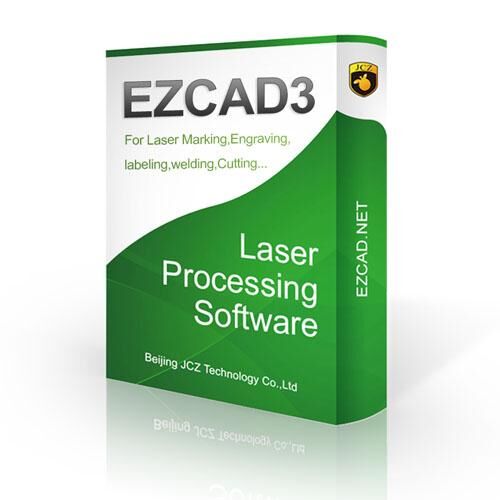
If you are looking for an ezcad software download, choosing the correct version is an important step toward setting up your laser marking machine. EZCAD is widely used with compatible fiber laser marking systems to create precise text, logos, serial numbers, barcodes, and graphics on different materials. Whether you operate a small engraving workshop or manage an industrial production line, the right software setup can help streamline your marking workflow.
What Is EZCAD Software?
EZCAD is laser marking software commonly used with compatible laser marking controllers, including certain JCZ control boards. It allows operators to prepare designs, adjust marking parameters, and send jobs to supported laser marking machines.
The software is used for applications involving metals such as stainless steel, aluminum, brass, and other suitable materials. Depending on the machine configuration, it can also support marking applications on selected plastics and coated surfaces.
Before installing the software, check your machine's controller model and hardware compatibility. Not every EZCAD version works with every laser marking system.
How to Choose the Correct EZCAD Version
When searching for an ezcad software download, you may encounter different versions, including EZCAD2 and EZCAD3. Selecting the appropriate version depends on your laser controller, machine configuration, and operating requirements.
EZCAD2 is commonly found on traditional laser marking systems, while EZCAD3 supports compatible hardware configurations designed for that software platform. These versions should not be treated as interchangeable.
Before downloading, verify the following details:
-
Controller compatibility: Confirm the model of the control board installed in your machine.
-
Operating system: Check the software's supported Windows versions and system requirements.
-
Driver requirements: Determine whether the controller needs a specific driver.
-
Installation package: Use the version recommended by your machine manufacturer or controller supplier.
These checks can help prevent installation errors and communication problems between the computer and laser marking machine.
Steps to Install EZCAD Software
After confirming compatibility, follow the installation instructions supplied with your machine or controller.
-
Obtain the installation package from your laser machine manufacturer or an authorized controller supplier.
-
Extract the downloaded files if they are provided in a compressed folder.
-
Install any required controller drivers according to the supplier's instructions.
-
Open the EZCAD application and check whether the correct configuration files are available.
-
Connect the computer to the marking machine and verify that the controller is recognized.
-
Test the setup using the manufacturer's recommended procedure before starting production work.
If the software fails to communicate with the machine, check the USB connection, driver installation, controller model, and software version.
Common Uses of EZCAD in Laser Marking
EZCAD supports a range of marking tasks in manufacturing and product customization. Operators can prepare artwork for product identification, company branding, QR codes, serial numbers, and technical labels.
In industrial settings, laser marking helps manufacturers add permanent identification to components and finished products. Jewelry workshops may also use compatible systems for personalized designs, while electronics manufacturers can mark selected components with traceability information.
The results depend on the laser source, material, lens, machine settings, and the operator's configuration.
Safety and Maintenance Tips
Before using a newly installed EZCAD program, confirm that the machine is configured correctly and that its emergency stop and safety interlocks operate as intended.
Fiber laser marking systems can produce hazardous laser radiation. Use appropriate wavelength-rated protective equipment, suitable enclosures, and the safety procedures specified by the machine manufacturer. Never run test jobs on exposed reflective materials without the required safeguards.
Keep a backup of working configuration files and use trusted software packages to reduce the risk of corrupted files or unwanted programs.
Where to Get EZCAD Software
For a reliable ezcad software download, start with your laser marking machine supplier or the official support channel for your controller. Ask for the correct installation package, compatible driver, and configuration files for your specific equipment.
Avoid unknown download websites that offer unverified installers. Using the correct software package helps maintain compatibility and reduces unnecessary troubleshooting.
Final Thoughts
Finding the right ezcad software download is an essential part of setting up a dependable laser marking system. By confirming controller compatibility, following the correct installation process, and observing laser safety requirements, you can prepare your equipment for accurate and consistent marking applications.
If you are unsure which version to install, provide your laser machine model and controller information to your supplier before proceeding.