 About
About
 Terms
Terms
 Privacy
 Advertisment
 DMCA
DMCA
 Gmaps
Gmaps
 Rewards
 Refunds
 Developers
DISM Check Health Command: How to Repair Windows Image Easily
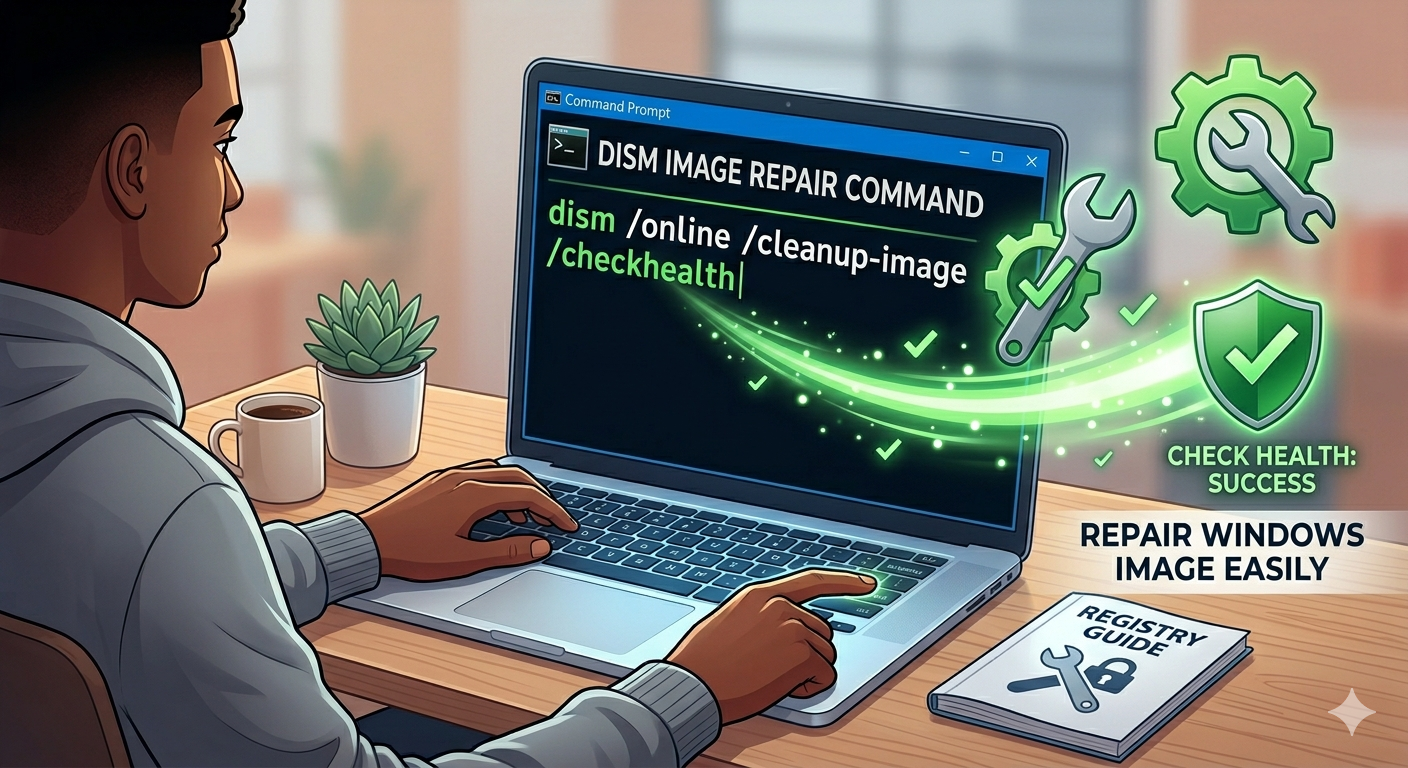
The DISM, also known as the Deployment Image Servicing and Management, is a highly powerful tool that is present in every Windows device. This tool is used by people to diagnose and repair issues with their system. This means that if your system is functioning abnormally, crashing, or even failing to update, then you can easily run a DISM Check Health Command to identify the issue causing the problem.
Understand the DISM Check Health
The /CheckHealth is a useful command that is used by people to scan their device and determine whether their system is corrupted or not. The command is not used to repair, but to tell you what further action is required or not. This means that this is the first step that you need to do when troubleshooting issues.
What is the process to run DISM Check Health?
To run the command, you need to adhere to the directions that we are giving here:
-
Open the Start menu and enter ‘Command Prompt’.
-
Now, you need to right-click on it and choose ‘Run as administrator’.
-
Here, you need to enter the command ‘ DISM /Online /Cleanup-Image /CheckHealth’.
-
Lastly, press the enter button and wait for the process to be complete.
Once this is done, you will see three different results on your device: no corruption, repairable corruption, or non-repairable corruption, highlighting the issue with your device.
How can you repair the Windows Image?
If you see corruption detected on your computer through the DISM repair command, you can proceed with other deep scans and repairs to resolve the issue on your device.
-
DISM /Online /Cleanup-Image /ScanHealth - This command is used to perform a more detailed check on the device.
-
DISM /Online /Cleanup-Image /RestoreHealth - After the preceding command, you need to run this one to repair by downloading clean files from Windows Update.
You need to ensure that you have an active internet connection when you run all the commands. The repair process might take several minutes to complete.
Sponsored
Sponsored

Sponsored
Sponsored
Sponsored
Sponsored
Virtuala FansOnly
CDN FREE
Cloud Convert
Categories
Read More
viral videos, social media marketing, TikTok tips, Instagram content, video marketing, engagement strategies, creative content, digital marketing ## Introduction Creating viral videos on social media platforms like TikTok and Instagram might seem like an insurmountable challenge. However, with the right strategies and a touch of creativity, it's entirely possible to capture your audience's...

Von A wie Asbesterkennung bis S wie Schadstoffanalyse. Wir helfen fachmännisch nach der TRGS 519 bei Ihrer Asbestsanierung in Leverkusen. Asbestsanierung in Leverkusen und Asbestsanierung in Bochum Warum Asbestsanierung heute unverzichtbar ist Asbest galt jahrzehntelang als Wundermaterial – hitzebeständig, langlebig und vielseitig einsetzbar. Doch die gesundheitlichen Risiken...

## Giriş Hayal kırıklığı, çoğu zaman kalp kırıklığına benzer. Beklentiler yükseldiğinde ve gerçeğin soğuk yüzüyle karşılaştığınızda, içsel bir boşluk hissi kaplar. İşte tam bu noktada, GPT-5’in hikayesi başlıyor. Yeni bir yapay zeka olarak tanıtılan bu sistemin, kullanıcılar ve teknoloji meraklıları arasında yarattığı beklentiler, ne yazık ki, beklenenden çok daha fazla hayal kırıklığına yol...

पासवर्ड सुरक्षा, ऑनलाइन सुरक्षा, डिजिटल सुरक्षा, पासवर्ड प्रबंधन, साइबर सुरक्षा, इंटरनेट सुरक्षा, पासवर्ड परिवर्तन, डेटा सुरक्षा, सुरक्षा टिप्स ## परिचय आज के डिजिटल युग में, हमारी ऑनलाइन उपस्थिति हर दिन बढ़ती जा रही है। हम सोशल मीडिया पर सक्रिय हैं, ऑनलाइन शॉपिंग करते हैं, और अपने महत्वपूर्ण डेटा को क्लाउड स्टोरेज में रखते हैं। लेकिन क्या आप जानते हैं कि इस सभी सुविधा के साथ, आपकी ऑनलाइन...

## Introdução Você já parou para pensar na irracionalidade de algumas inovações no mundo das ferramentas? O que deveria ser uma evolução prática e funcional se transforma, muitas vezes, em uma exibição de marketing enganosa. E agora, temos o último absurdo: uma multitool que pesa menos que uma moeda de 1 centavo. Sim, você leu certo. A ToolTechGeek revelou um produto que, embora interessante...