
Convert Image into EPS Format: Preserve Quality and Scalability Every Time
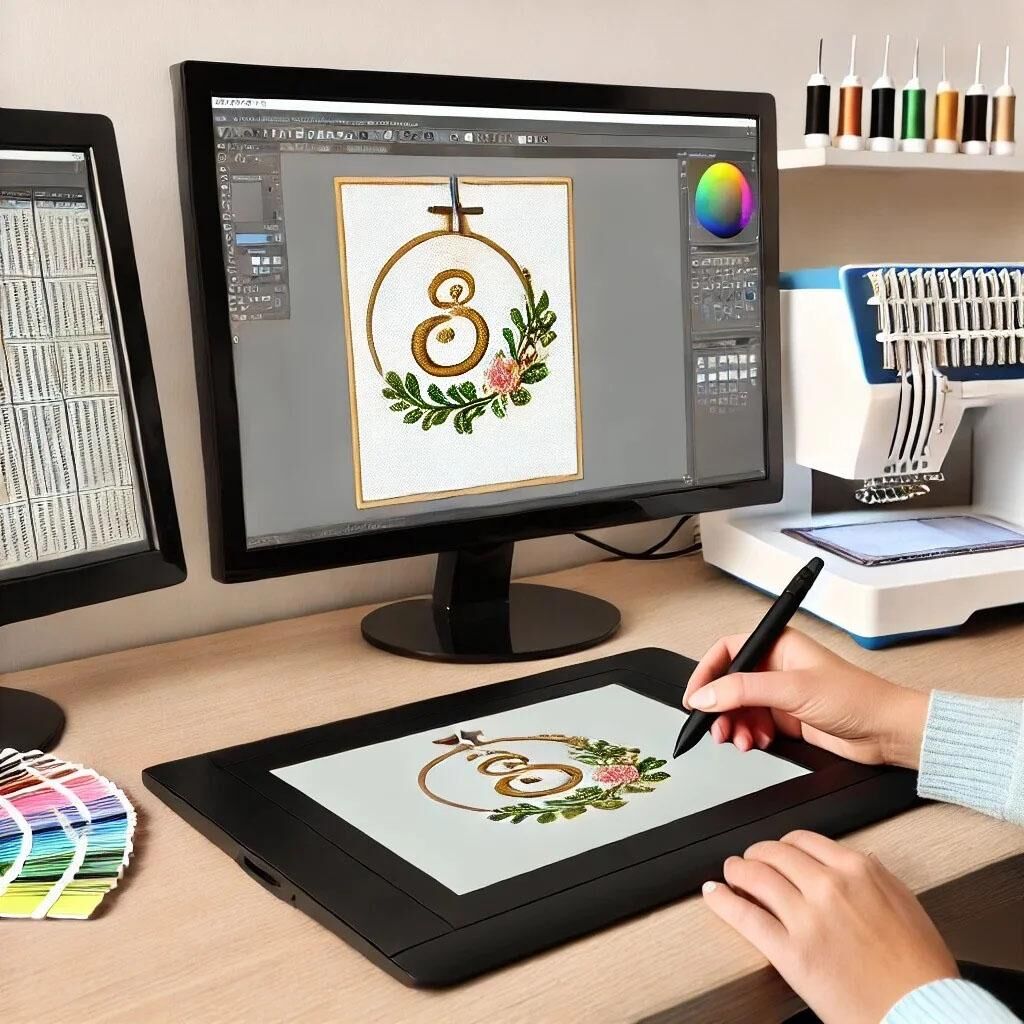
Introduction: Stop Stretching Pixels and Start Scaling Vectors
You have a beautiful logo. It looks crisp on your website. You stretch it for a billboard—and suddenly it looks like a muddy mess. Or you shrink it for a business card, and the text becomes an unreadable blob. Sound familiar? That is what happens when you rely on raster images like JPG or PNG. They hate being scaled.
The fix is simpler than you think. Convert Image into EPS Format and you unlock true scalability. EPS stands for Encapsulated PostScript, and it is the secret weapon of graphic designers, sign makers, and anyone who needs their artwork to look perfect at any size. No pixels. No blur. Just clean, mathematical lines that scale from a postage stamp to a highway billboard without losing a single drop of quality.
I learned this the hard way after printing 500 banners with a fuzzy logo. Never again. Now I will show you exactly how to convert your images into EPS format without losing detail, color accuracy, or your sanity.
What Exactly Is EPS and Why Should You Care?
Let us cut through the jargon. An EPS file does not store dots or pixels. It stores math—paths, curves, lines, and color instructions. When you enlarge it, the math recalculates. No jagged edges. No blur. Just infinite smoothness.
EPS is also a universal handshake between design programs. Adobe Illustrator, CorelDRAW, Inkscape, and even older printing presses all speak EPS. If you send a JPG to a professional printer, they might cry a little inside. Send an EPS, and they will thank you.
I once sent an EPS of a car dealership logo to a sign maker. He called me just to say, "Finally, someone who gets it." That feeling never gets old.
Raster vs. Vector: The Simple Difference
Raster images (JPG, PNG, GIF, BMP) are grids of tiny colored squares. Zoom in enough, and you see the pixels. Vector images (EPS, AI, SVG) are formulas. A straight line is just "start here, end here, color black." A circle is "center point, radius, color red."
When you convert an image into EPS format, you are translating pixels into formulas. That translation is where most people mess up. Hit auto-trace in cheap software, and you get a bloated, messy EPS with thousands of unnecessary anchor points. The result? A file that is technically vector but behaves like a drunk pixel mess.
I have opened client-supplied EPS files that froze my computer because auto-trace added 50,000 nodes for a simple star shape. Do not be that person.
Method One: Using Adobe Illustrator (The Pro Way)
If you have access to Illustrator, this is your best bet. Open your image—any format works. Then select the image and click on Image Trace in the top menu. But ignore the default settings. They are garbage for most logos.
Open the Image Trace panel. Check the Preview box. Set Mode to Black and White for simple logos or Color for complex ones. Then push the Paths slider to 80 percent. This keeps curves smooth without too many points. Push Corners to 60 percent to preserve sharp edges. Set Noise to about 20 pixels to ignore dust and artifacts.
Then click Expand. Your image is now vector paths. Go to File, Save As, and choose EPS. In the EPS options, set Version to Illustrator 3 EPS. It sounds old, but it works everywhere. Leave compatibility high, and do not embed thumbnails.
I digitized a faded coffee shop logo this way. The original scan was 300 dpi but dirty. With careful Paths and Corners adjustments, the EPS came out clean enough to cut vinyl for a storefront window.
Method Two: Free Tools That Actually Work
Not everyone has Illustrator money. I get it. Use Inkscape instead—it is completely free and open source.
Open Inkscape. Import your image. Select it, then go to Path, Trace Bitmap. Choose Single Scan for logos or Multiple Scans for more complex images. Push the Smoothing slider to about 0.60. Leave the rest default. Click Apply. Delete the original raster layer underneath. Save as EPS.
Here is a trick I use: before tracing, convert your image to high-contrast in GIMP or even MS Paint. Boost the brightness and crush the shadows. The tracing algorithm works better with hard edges.
I once helped a kid convert his band’s hand-drawn logo into EPS for t-shirts. We scanned the drawing, bumped contrast in a free editor, traced in Inkscape, and saved as EPS. The shirts sold out at a local show. All for zero dollars in software.
Color Modes Matter More Than You Think
Here is a mistake I made twice before learning. EPS files support two color modes: RGB for screens and CMYK for print. If you convert an image into EPS format but leave it in RGB, professional printers will shift your colors unpredictably. Neon blues turn muddy. Bright reds look orange.
Always convert your artwork to CMYK before saving as EPS if the final output is print. In Illustrator: File, Document Color Mode, CMYK. In Inkscape: File, Document Properties, Color Management, US Web Coated (SWOP) or ask your printer.
I sent an EPS of a medical logo with a specific green to a uniform printer. Forgot to switch to CMYK. The scrubs came back looking like expired celery. The printer reprinted for free because he felt bad—but do not rely on kindness. Learn the color mode rule.
Clean Up Your Paths Before Saving
A great EPS has clean, few anchor points. A bad EPS has thousands of redundant points. To clean, use Simplify Path in Illustrator (Object, Path, Simplify) or Simplify in Inkscape (Path, Simplify). Set tolerance low at 2 or 3 degrees to keep shape integrity while removing clutter.
Also remove stray points. Zoom into 2000 percent and look for floating specks. Auto-trace loves to create tiny isolated dots from scanner dust or JPEG artifacts. Delete them manually. They cause printing errors and drive plotters crazy.
I spent an hour cleaning a client’s EPS that had 400 stray points from a dirty scan. After cleaning, the file size dropped from 18MB to 1.2MB. The sign company finished the job in half the time.
Testing Your EPS for Real-World Use
Do not trust your screen. Open your EPS in a different program. If you saved from Illustrator, open it in Inkscape or even Microsoft Word. Does it render cleanly? Zoom to 3200 percent. Are the edges smooth? Try changing the color. Try scaling it way up and way down.
Then send it to a test print. Print it on a home laser printer at both tiny and huge sizes. If it holds up, you are golden.
I always keep a test EPS file on my desktop. It has a square, a circle, a star, and some small text. I use it to test new software or printers before sending real client work.
Conclusion: EPS Is Your Scalability Superpower
Converting an image into EPS format sounds technical, but it is really just teaching your artwork to be flexible. No more pixel panic. No more blurry banners. Just crisp, clean, professional graphics that scale to any size without losing detail.
Whether you use paid tools like Illustrator or free ones like Inkscape, the rules are the same: trace carefully, clean your paths, watch your color mode, and always test. Your future self—and your printer—will thank you.
Now go convert that dusty old logo into EPS. Watch it scale beautifully on a business card and a billboard. And smile because you finally cracked the code.
 English
 Arabic
 French
 Spanish
 Portuguese
 Deutsch
 Dutch
Dutch
 Italiano
 Russian
 Romaian
 Portuguese (Brazil)
 Greek
Greek
 Hrvatski
 Cehoslowakia