

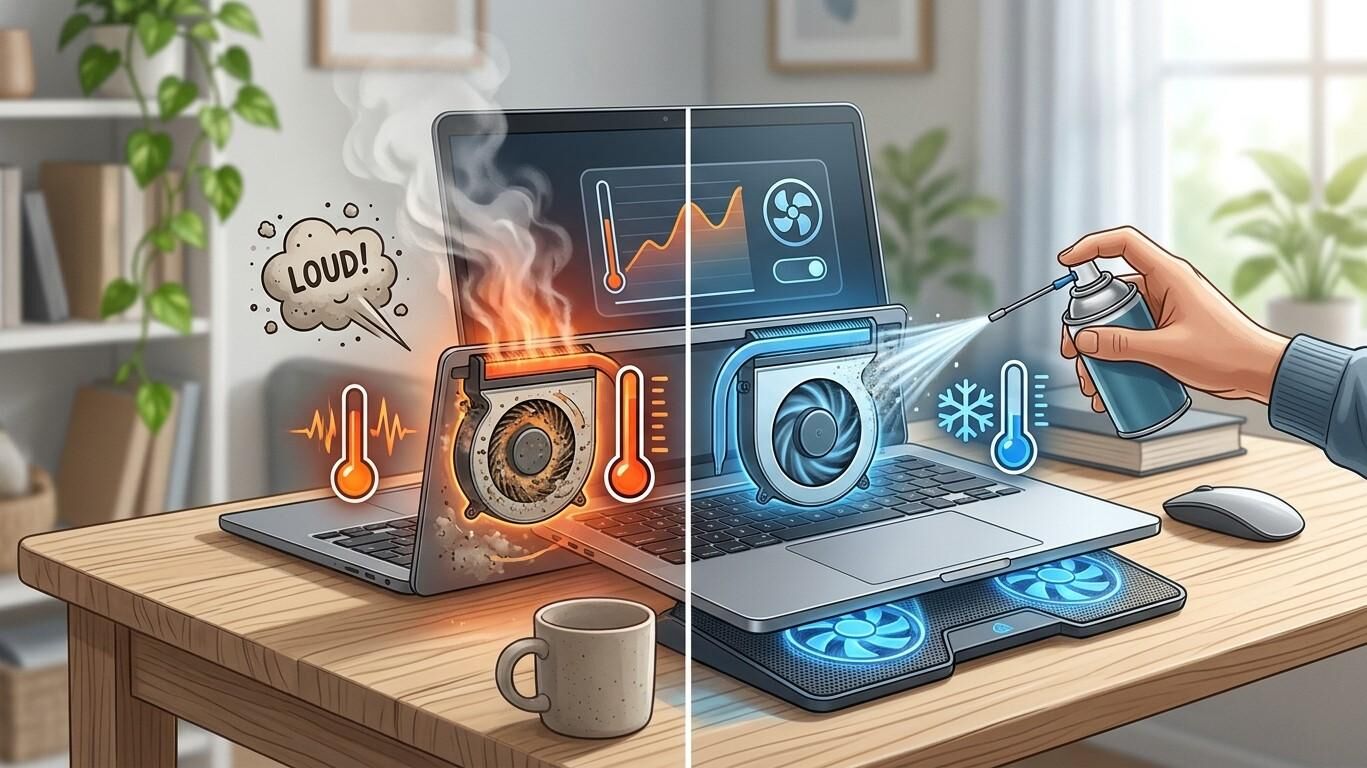

A laptop fan plays an important role in keeping internal components cool. However, if your laptop fan suddenly becomes unusually loud or runs constantly, it may indicate that your device is working harder than necessary or experiencing a cooling problem.
A noisy fan can interrupt your work, affect your laptop's performance, and sometimes signal overheating or hardware trouble. Fortunately, several troubleshooting methods can help reduce fan noise and improve cooling. If the problem continues, professional computer repair Albany services can help identify the cause.
Table of Contents
-
Why Does a Laptop Fan Become So Loud?
-
Too Many Background Applications
-
Dust and Blocked Air Vents
-
High Laptop Temperature
-
Outdated Drivers and Software
-
Check Your Laptop's Power Settings
-
When to Seek Professional Laptop Repair
-
Frequently Asked Questions
1. Why Does a Laptop Fan Become So Loud?
Laptop fans automatically increase their speed when internal temperatures rise. This helps remove heat generated by the processor, graphics card, and other components.
A loud fan does not always mean your laptop is damaged. It may simply be responding to demanding tasks. However, constant high-speed operation, grinding noises, or unusual vibrations may indicate a problem.
Common causes include:
-
Heavy applications using too much processing power.
-
Dust buildup inside the cooling system.
-
Blocked ventilation openings.
-
High room temperatures.
-
Outdated drivers or software.
-
Worn-out or damaged cooling fans.
Understanding the cause is the first step toward reducing unnecessary fan noise.
2. Too Many Background Applications
Running several demanding programs simultaneously can increase CPU and GPU usage. As these components generate more heat, the cooling fan speeds up to maintain safe temperatures.
How to fix it:
-
Press Ctrl + Shift + Esc to open Task Manager.
-
Select the Processes tab.
-
Check which applications are using the most CPU resources.
-
Close programs you do not currently need.
-
Review startup applications and disable unnecessary ones.
Avoid ending unfamiliar system processes because doing so may affect Windows functionality.
3. Dust and Blocked Air Vents
Dust accumulation is one of the common reasons laptop cooling systems become noisy. Dust can restrict airflow, making it harder for the fan to remove heat.
To improve ventilation:
-
Place your laptop on a hard, flat surface.
-
Avoid using it on blankets, beds, or cushions.
-
Keep ventilation openings clear.
-
Clean external vents carefully.
-
Arrange professional internal cleaning when dust buildup becomes severe.
Always shut down and unplug your laptop before cleaning its exterior. Avoid inserting objects into the vents or using excessive compressed air, which can damage internal components.
4. High Laptop Temperature
A laptop may produce loud fan noise when performing demanding activities such as gaming, video editing, or running multiple applications.
High temperatures can also result from poor ventilation, cooling system problems, or dried-out thermal paste.
You can help control temperatures by:
-
Keeping your laptop away from direct sunlight.
-
Using it in a cool, ventilated environment.
-
Closing unnecessary applications.
-
Avoiding blocked air vents.
-
Using a compatible cooling pad if appropriate.
If your laptop becomes extremely hot or shuts down unexpectedly, stop using it until the cause is investigated.
5. Outdated Drivers and Software
Outdated software or problematic drivers can sometimes cause excessive background activity and increased system resource usage.
Check Windows Update for available updates. You can also review graphics and chipset drivers through your laptop manufacturer's official website.
If the fan became unusually loud after installing a new application or update, investigate whether that change is contributing to the problem.
Download software and drivers only from trusted sources.
6. Check Your Laptop's Power Settings
Power settings can affect processor performance and cooling behavior. High-performance modes may allow the processor to operate at higher speeds, generating additional heat.
On Windows, open Settings and navigate to System, then Power & battery. Review the available power mode options and consider using Balanced or an appropriate efficiency setting for everyday tasks.
The available options may vary depending on your laptop model and Windows version.
7. When to Seek Professional Laptop Repair
If your laptop fan remains loud even when no demanding applications are running, the cooling system may need professional inspection.
Possible problems include damaged fan bearings, blocked internal heat sinks, faulty temperature sensors, or cooling system failures.
A technician can inspect the fan, clean internal components, evaluate temperatures, and determine whether a replacement part is needed.
For reliable Computer Repair Albany NY assistance, visit computerrepairalbany.net to explore available computer and laptop support services. Professional computer repair Albany technicians can help diagnose persistent cooling and hardware problems.
Frequently Asked Questions
1. Is it normal for a laptop fan to make noise?
Yes. Some fan noise is normal, especially when running demanding applications. Constant excessive noise may indicate a cooling or software problem.
2. Why does my laptop fan run loudly even when idle?
Possible reasons include background applications, malware, blocked vents, outdated software, or a cooling system issue.
3. Can dust make a laptop fan louder?
Yes. Dust can restrict airflow, causing the fan to work harder to maintain safe internal temperatures.
4. Will a cooling pad reduce laptop fan noise?
A suitable cooling pad may improve airflow and help reduce temperatures, but it will not fix a damaged fan or internal cooling fault.
5. When should I replace my laptop fan?
Replacement may be necessary if the fan makes grinding noises, vibrates excessively, stops spinning, or fails to cool the laptop properly.
Conclusion and Call to Action
A loud laptop fan can result from demanding applications, dust buildup, blocked vents, high temperatures, or damaged cooling components. Managing background programs, improving ventilation, and keeping software updated can help reduce unnecessary fan activity.
If the noise continues or your laptop overheats, professional diagnosis can help prevent further hardware damage. Visit Computer Repair Albany NY at https://computerrepairalbany.net/ to learn more about computer troubleshooting, laptop maintenance, and repair services.